How to Make a Video of Santa in Your House, Step by Step (2026)
 Santa Caught on Camera
A real walkthrough with screenshots: one photo of your living room becomes a 15-second clip of Santa saying your child's name. Free preview first.
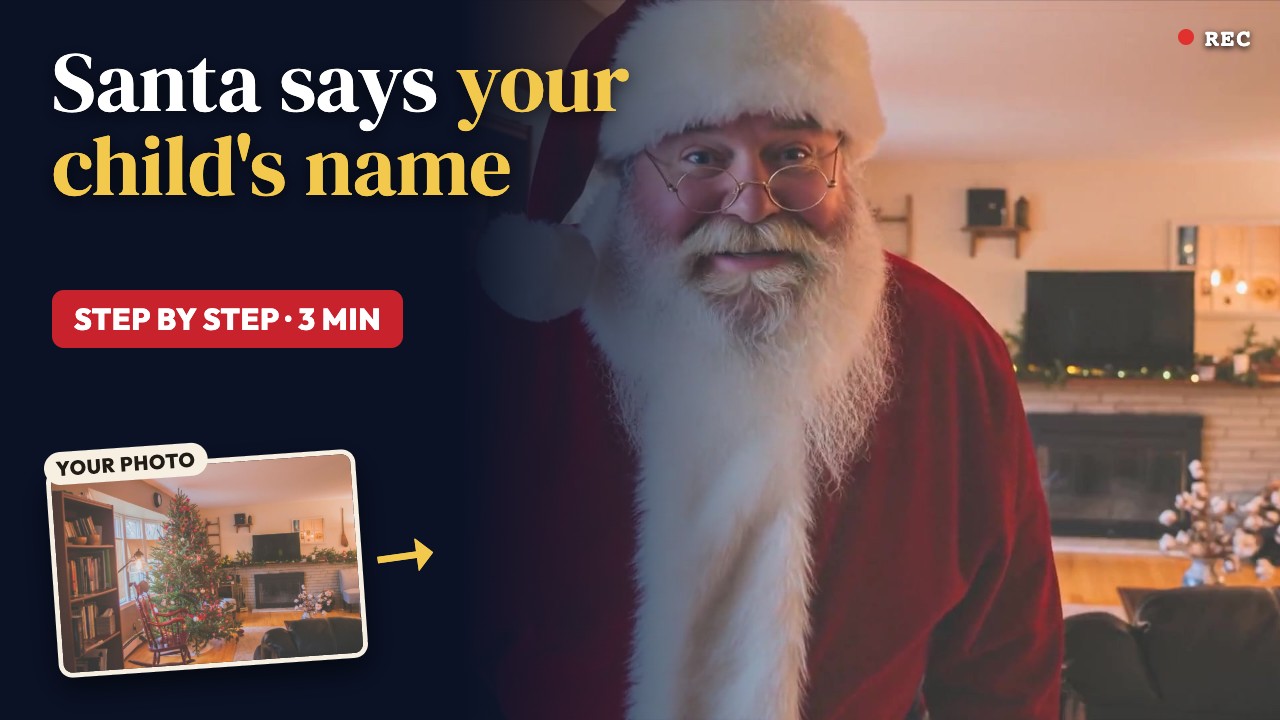
Here is the whole process, recorded on our live site with a real photo of a living room and a real order. One photo of the room goes in. Out comes a 15-second home-camera clip where Santa walks in, leaves a present, spots the camera and says "Ho ho ho! Merry Christmas, Lily! You read so many wonderful books this year. You're on my Nice List!"
It takes about five minutes, and you see a free preview before you pay anything. Here are the eight steps, with a screenshot of each one.
What you need
- One photo of the room where the tree is. Your phone camera is fine.
- Your child's first name, and how it sounds if the spelling is unusual.
- One good thing they did this year. There are ten ready-made ones, or you can write your own.
You don't need an app, and you don't need a photo of your child. Santa only ever sees the room.
Step 1: Pick the scene and your Santa
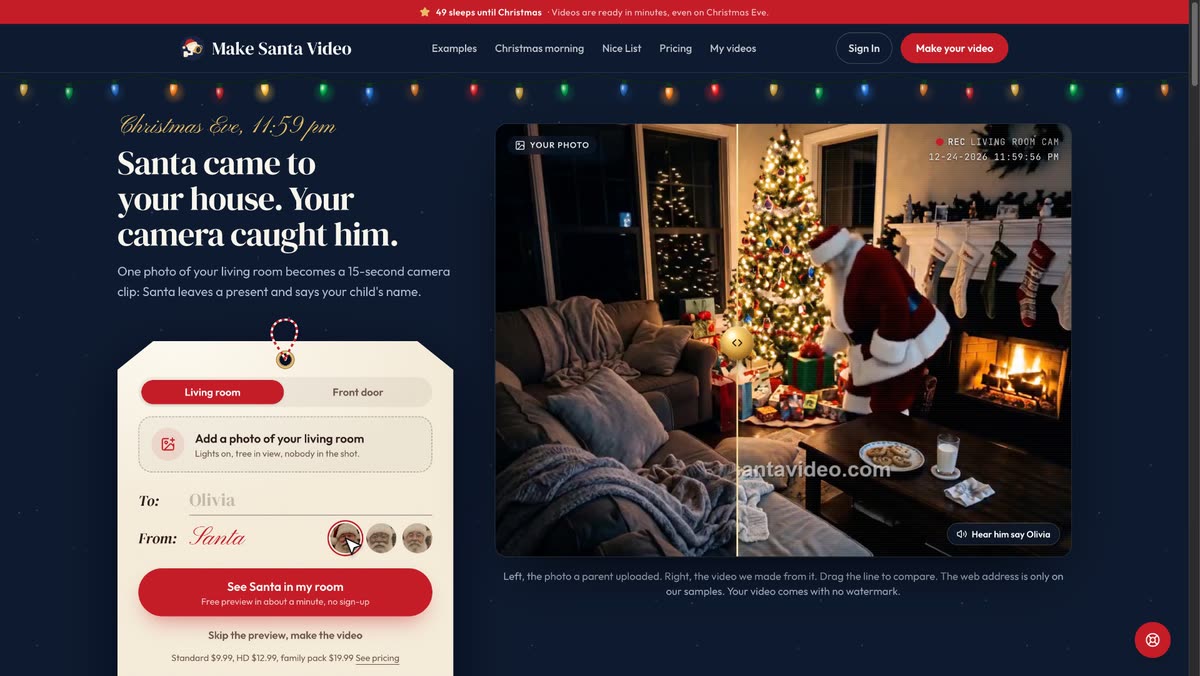
Go to makesantavideo.com. The tool sits right on the home page, next to a sample you can drag to compare the photo with the video made from it.
First choose where Santa gets caught: Living room, or Front door if you would rather use a doorbell camera screenshot. Then tap one of the three Santa portraits. Before you add a photo, the sample on the right switches to show the Santa you picked.
Step 2: Add one photo of the room
Tap Add a photo of your living room and pick a picture. A few things make a big difference:
- Shoot from a corner, holding the phone high, like a camera on the wall.
- Keep the tree and some floor in view, so Santa has somewhere to walk.
- Leave the lights on. Tree lights and a lamp are enough.
- Keep people and pets out of the shot.
The video starts from this exact picture and the camera never moves, which is why it looks like your own home camera.
Step 3: Type your child's first name
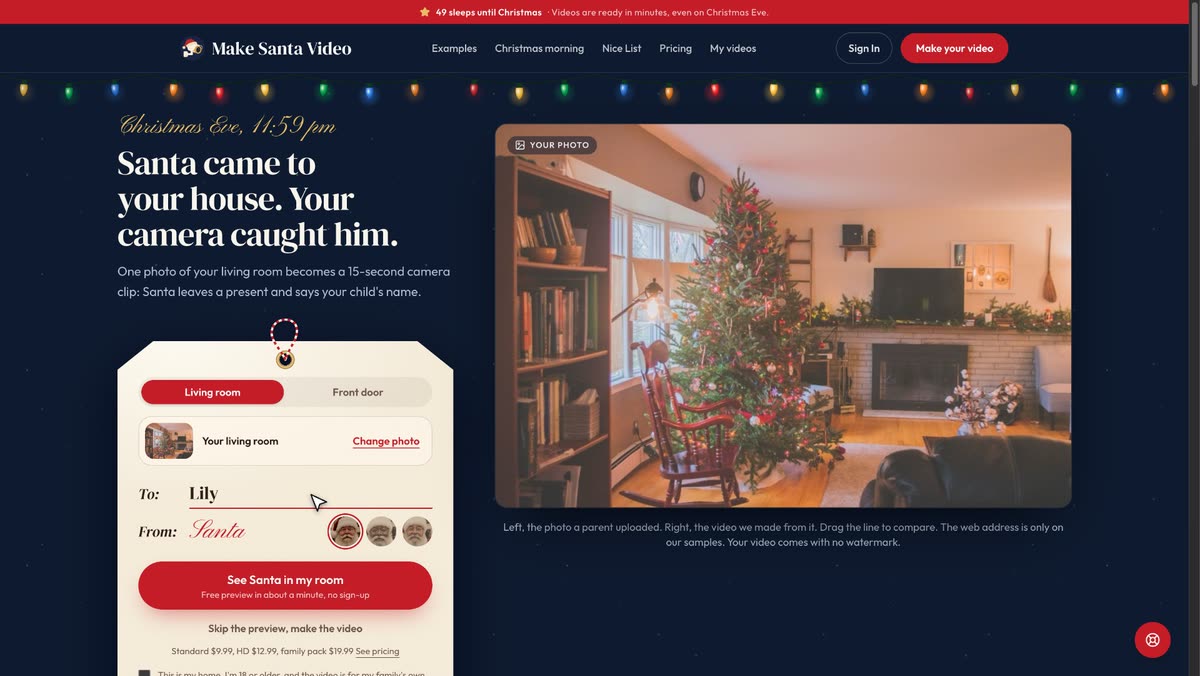
Type the first name in the To: line. If it could be read two ways, open Tricky to pronounce? and spell it the way it sounds, with hyphens between the sounds, like Seer-sha for Saoirse. Santa says what you type there, and the name on the page stays spelled correctly.
Step 4: See the free preview
Tick the box to confirm it's your home and the video is for your family, then tap See Santa in my room. You don't need an account for this.
In a minute or two (ours took a little over two), a still of Santa appears in your room. Drag the gold line to compare it with your photo. The free still carries our web address; you can download it as it is, or remove the watermark for $2.99.
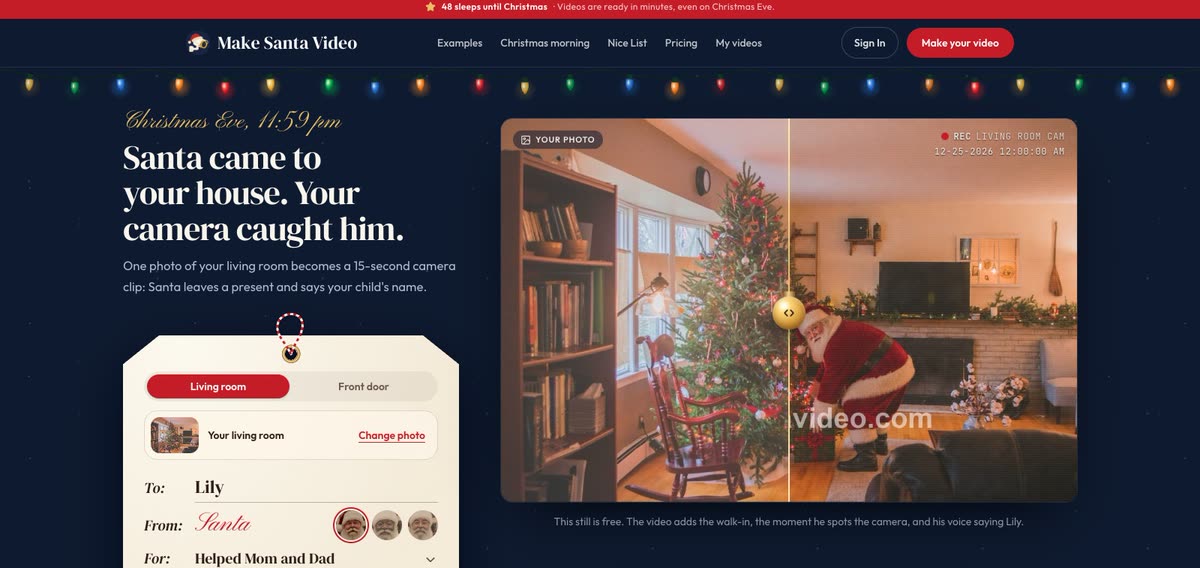
If the preview looks off, this is the moment to try a brighter or wider photo. It costs nothing.
Step 5: Choose a good deed and a version
Under For:, pick something your child did this year: kind to a little brother, worked hard at school, read lots of books and so on. Or choose Write your own… and type one short sentence, up to 60 characters, so Santa has time to say it.
The card then shows exactly what Santa will say. Read it once out loud; that's the line your child will hear.
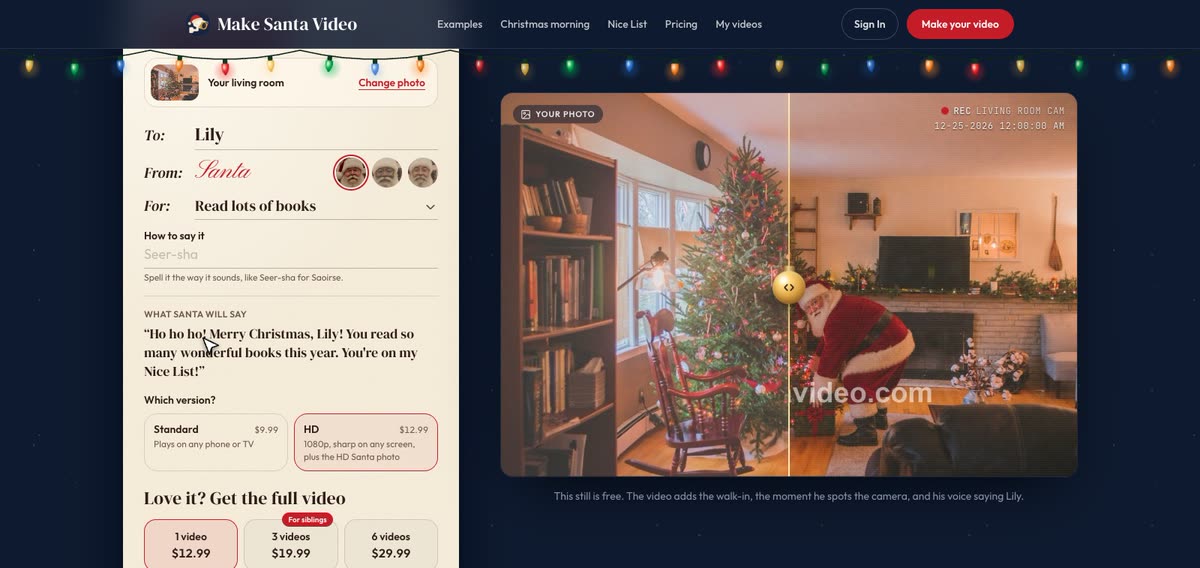
Then pick a version. Both play on any phone or TV:
| Version | Price | What you get |
|---|---|---|
| Standard | $9.99 | The 15-second video |
| HD | $12.99 | The video in 1080p, plus the HD Santa photo |
Step 6: Sign up and pay once
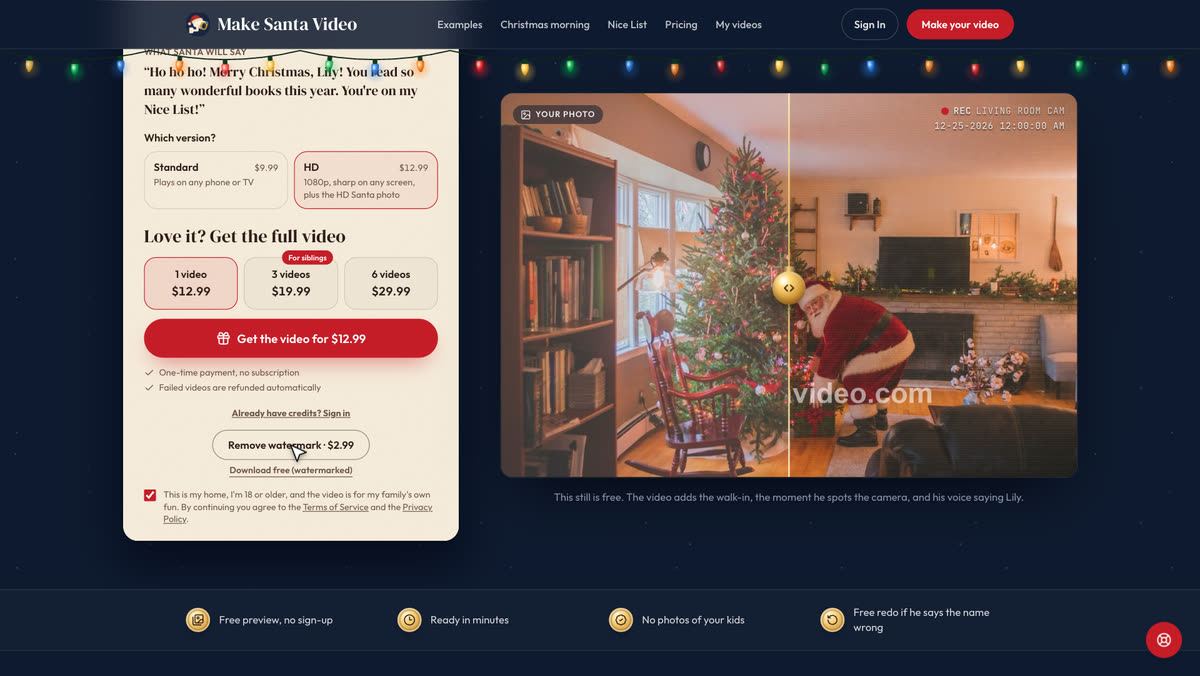
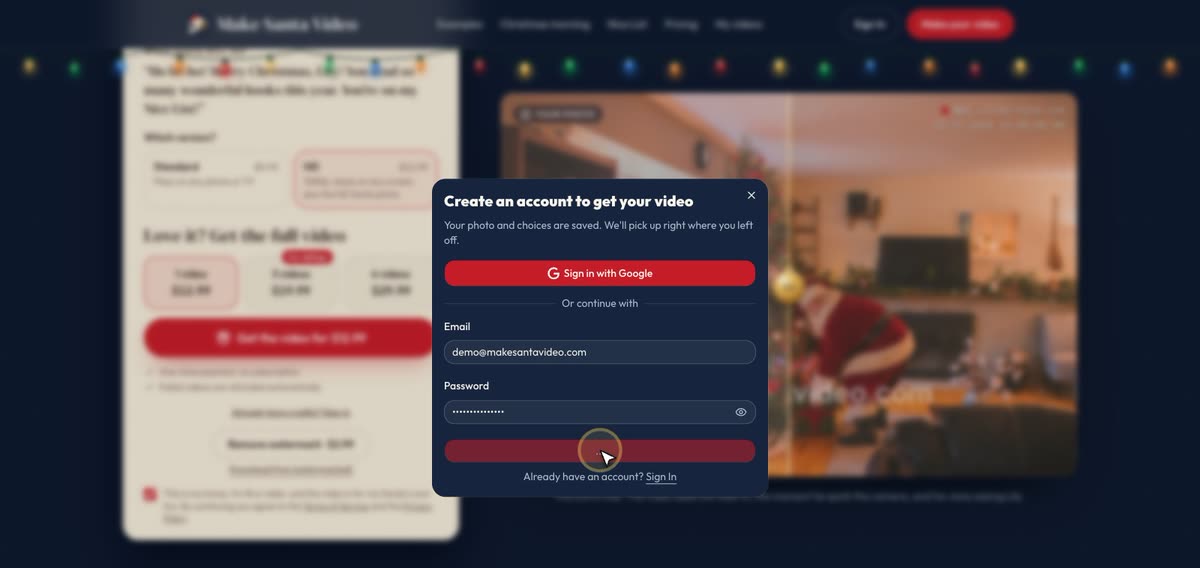
Pick one video, or a pack if you have more than one child, and tap Get the video. Create an account with your email (or Google) so the video is saved to you, then pay once by card, Apple Pay or Link. There is no subscription, and if a video fails the credits come back automatically.
Step 7: Make the video
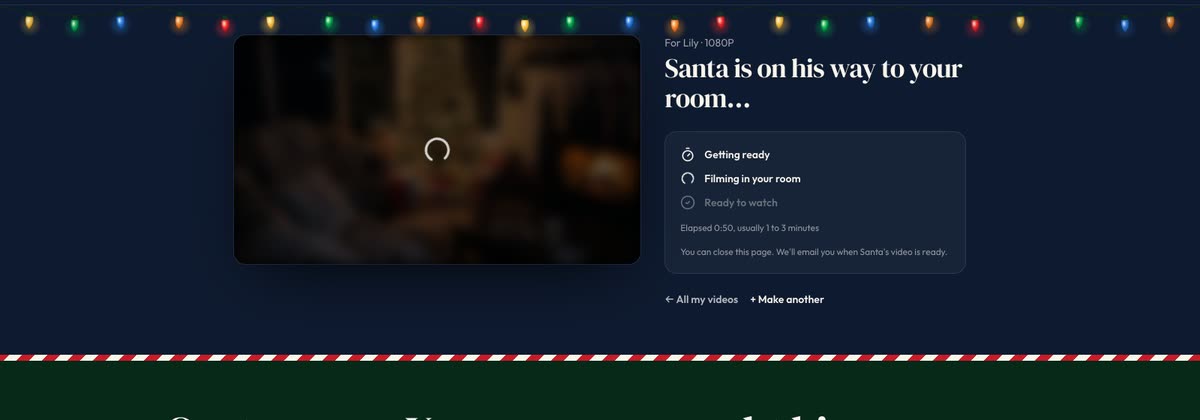
After paying you land back on the same card, with your photo, name and choices still filled in. Tap Make the video.
The page shows Santa on his way. Ours was ready in about two minutes; it usually takes a few. You can close the page, and we email you when it's done.
Step 8: Watch, save and share
The video page opens on your photo and the finished video side by side. Tap Play with sound: Santa walks in, sets a present by the tree, notices the camera, says your child's name and their good deed, and puts a finger to his lips. Your video has no watermark.
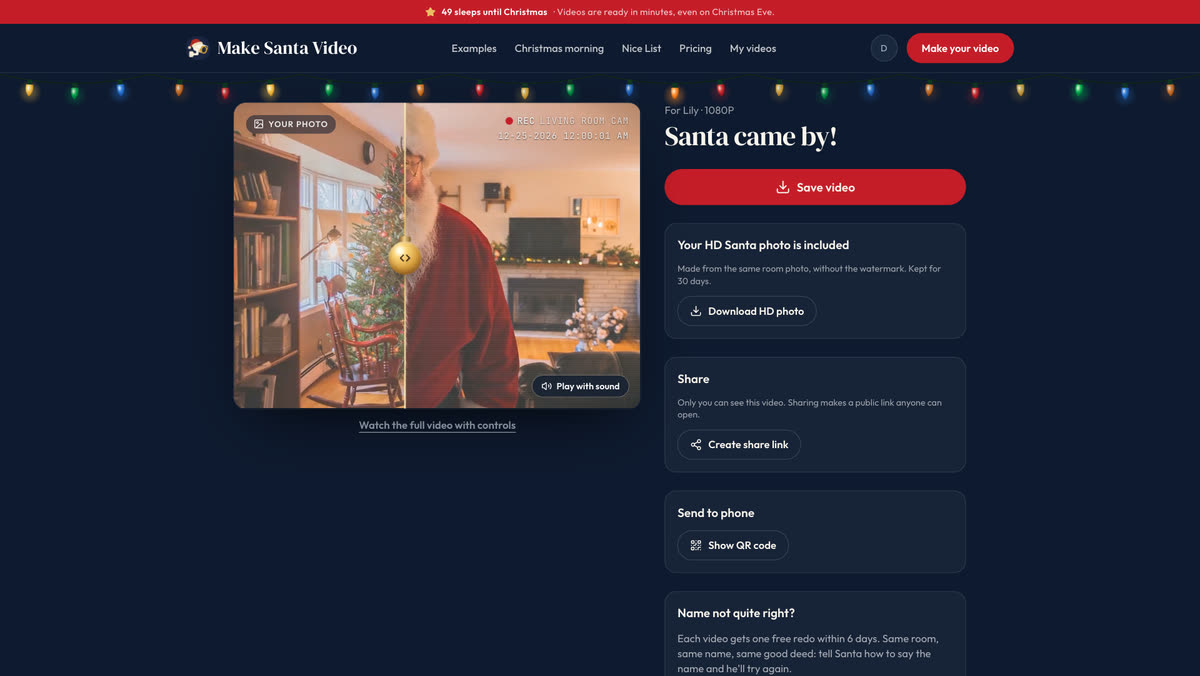
From the same page you can:
- Save video to keep the file. With HD, Download HD photo gives you the Santa photo without a watermark.
- Create share link to send it to grandparents. Only people with the link can watch it.
- Santa is calling: open the link on the phone your child holds and it rings like an incoming call. When they tap Answer, the video plays. There is more on that on our video call from Santa page.
- Send to phone: scan a QR code to save the video on your phone. The link works for 24 hours.
- Redo it free once within 6 days if Santa says the name wrong.
- Make one for another child in the same room for $6.99 instead of $12.99.
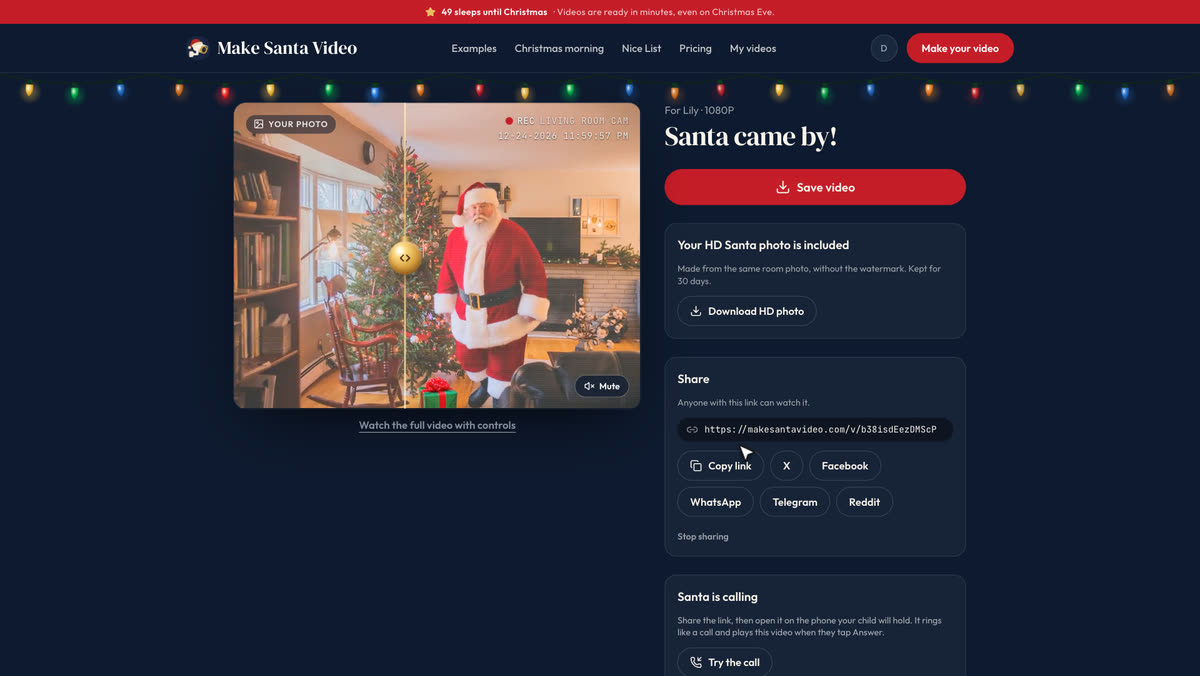
Videos are kept for 30 days, so save the file before then.
Showing it on Christmas morning
Play it on the TV like footage you just found on the home camera: "Wait, what's this from last night?" The room is your room and the name is their name, which is what makes it land. For more ideas on staging it, see how to catch Santa on camera.
Try it
The preview is free and takes a minute or two. Make your Santa video, or start with the free photo of Santa in your room and decide later.
Questions
How long does it take to make a Santa video?
About five minutes from start to finish. In the run shown here the free preview took a little over two minutes and the finished video about two more. You can close the page while it films; we email you when it is ready.
Do I need to download an app?
No. Everything happens in the browser on your phone or computer. You only need one photo of the room.
What photo works best?
A wide shot from a corner, held high like a camera on the wall, with the tree and some floor in view, the lights on and nobody in the picture. Very dark photos give a blurry Santa.
What if Santa says the name wrong?
Every paid video gets one free redo within 6 days. Open the video page, spell the name the way it sounds, for example Seer-sha for Saoirse, and Santa tries again in the same room with the same good deed.
Can I make one for each of my children?
Yes. From the finished video page you can make one for another child in the same room for less than a new video, or buy a pack of videos up front.