Catch Santa in My House: Which App Actually Works? (2026)
 Santa Caught on Camera
What app can you use to make it look like Santa is in your house? Four honest options compared, including a step by step way to do it yourself with Gemini.
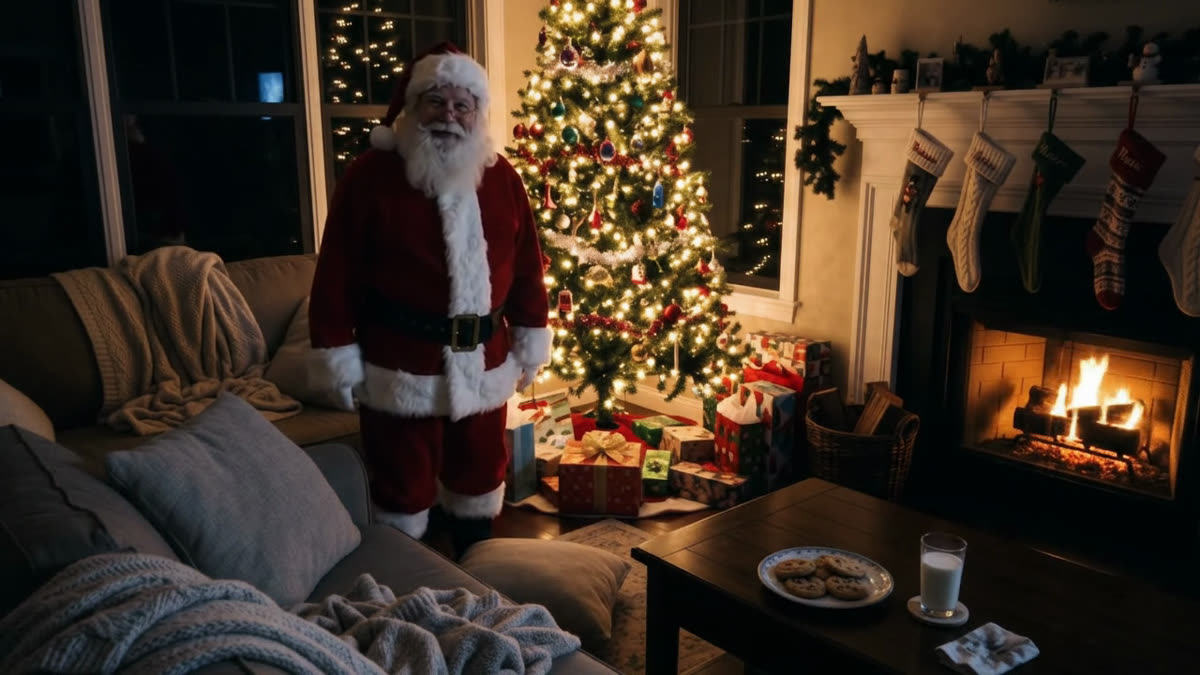
"Where is the app that catches Santa in my house?" is a big Christmas search, and the results are a letdown: a wall of sticker apps, most of them rated around two stars. What parents want is simple. A picture or a clip of Santa in their own living room, with no sign up, no download and no subscription.
You can get one this year. Here are the four routes parents actually use, sorted by how convincing the result looks, with the trade offs written down.
| If you want | Best route | Cost | Time |
|---|---|---|---|
| Something free and quick | The free AI photo | Free | About a minute |
| Do it yourself, your own way | An AI chat, for example Gemini | Depends on plan | A few minutes each |
| Santa says your child's name | A Santa caught on camera video | From $9.99 | A few minutes |
1. Santa sticker apps
Search an app store and you get dozens of apps that paste a Santa cut out onto a photo of your room. They are free, they take a minute, and children stop believing them fast.
The problems are always the same: the light on Santa does not match the light in the room, the edge is sharp, he is in the same pose in everyone's photo, and the camera wobbles while he does not. Pasted on top of that, most listings for this search average around two stars, which tells you what parents think.
If your child is three and it is five minutes before bedtime, a sticker is fine. If you want the photo to survive a second look, it will not.
2. A free AI photo of your own room
This is now the easiest free option. Instead of pasting a cut out on top of your picture, an AI model is shown the picture and asked to paint Santa into it, so the light, the shadows and the reflection on the floor come from your own room.
Here is how ours works: open the add Santa to photo page in a browser, upload one photo of your living room, press the button. It takes about a minute, it is free, and there is nothing to install. Santa comes back crouching by your tree, lit by your own tree lights.
The catch is that it is a still. A still is a good joke on a phone screen, but on a TV it gives your child nothing to watch. For the moment on Christmas morning, movement is what sells it.
3. Make it yourself with Gemini
If you would rather build the whole thing yourself, a general AI assistant can do both the picture and the video, with no download. We tested this end to end on 2 November 2026 with a photo of a decorated living room, in a personal Gemini account. Whether video is included, and how many clips you get, depends on your Gemini plan, so check yours before you start.
Step 1. Attach the photo first. Open gemini.google.com, click the plus button in the prompt box, and upload the photo. Doing this before you write anything matters: the model then edits your room instead of inventing a room that looks vaguely like it.
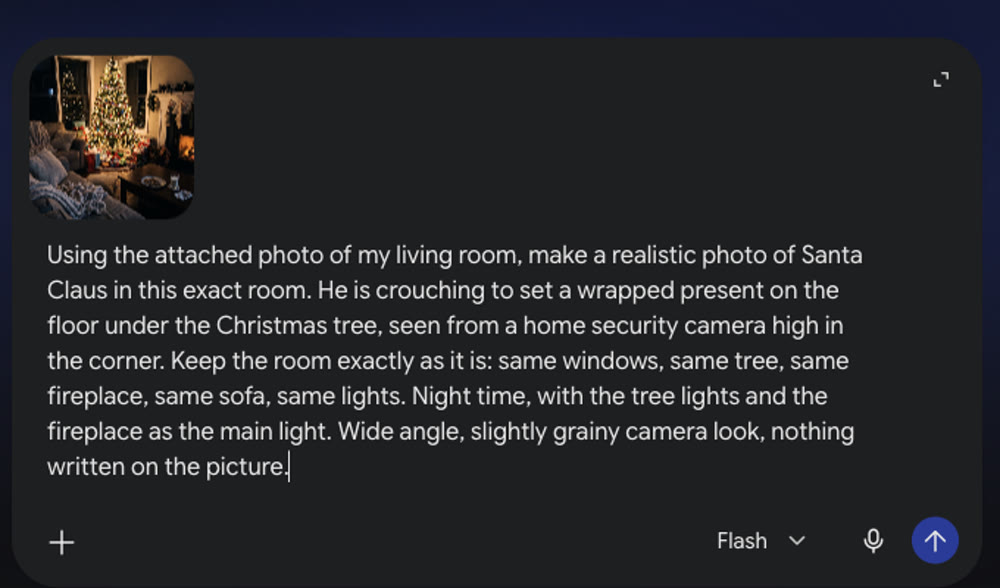
Step 2. Ask for the picture in plain words. Describe the room, what Santa is doing, and the camera angle. This is the prompt we used:
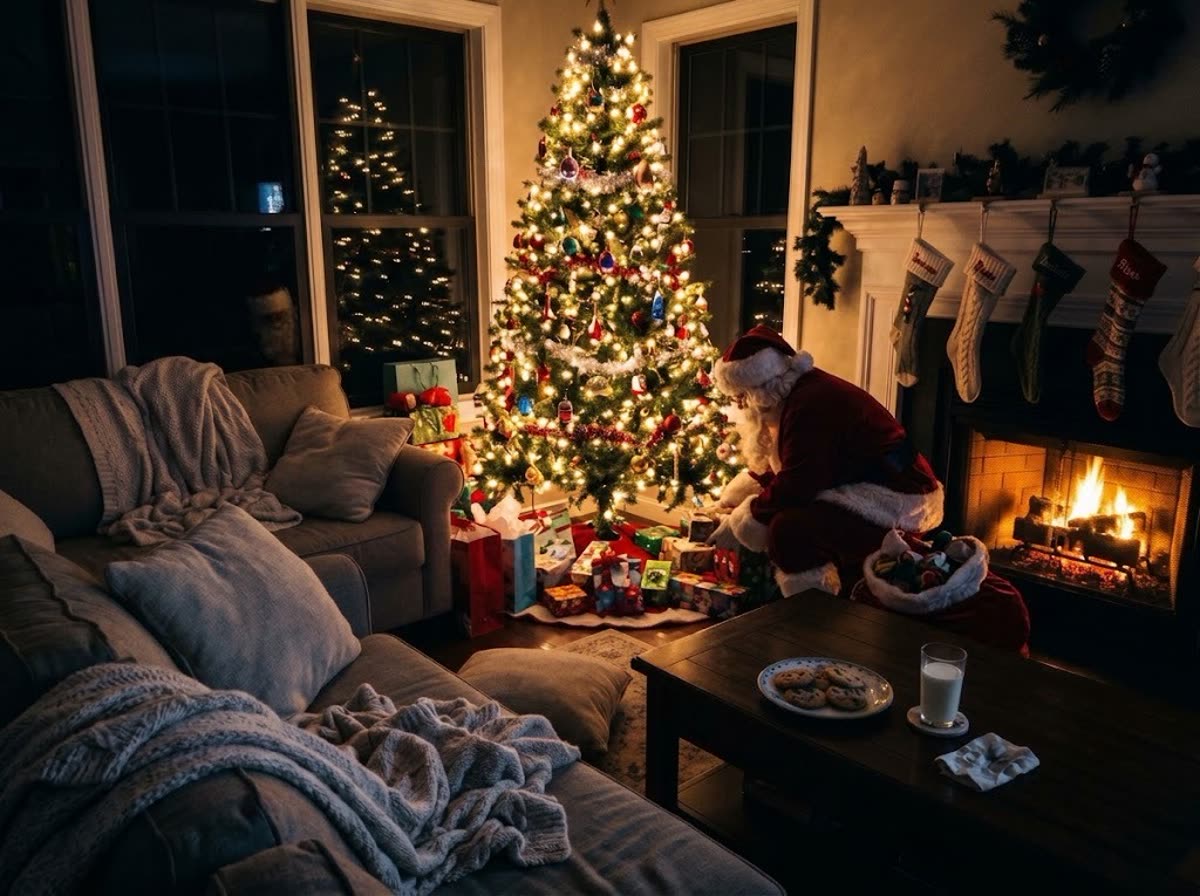
Using the attached photo of my living room, make a realistic photo of Santa Claus in this exact room. He is crouching to set a wrapped present on the floor under the Christmas tree, seen from a home security camera high in the corner. Keep the room exactly as it is: same windows, same tree, same fireplace, same sofa, same lights. Night time, with the tree lights and the fireplace as the main light. Wide angle, slightly grainy camera look, nothing written on the picture.
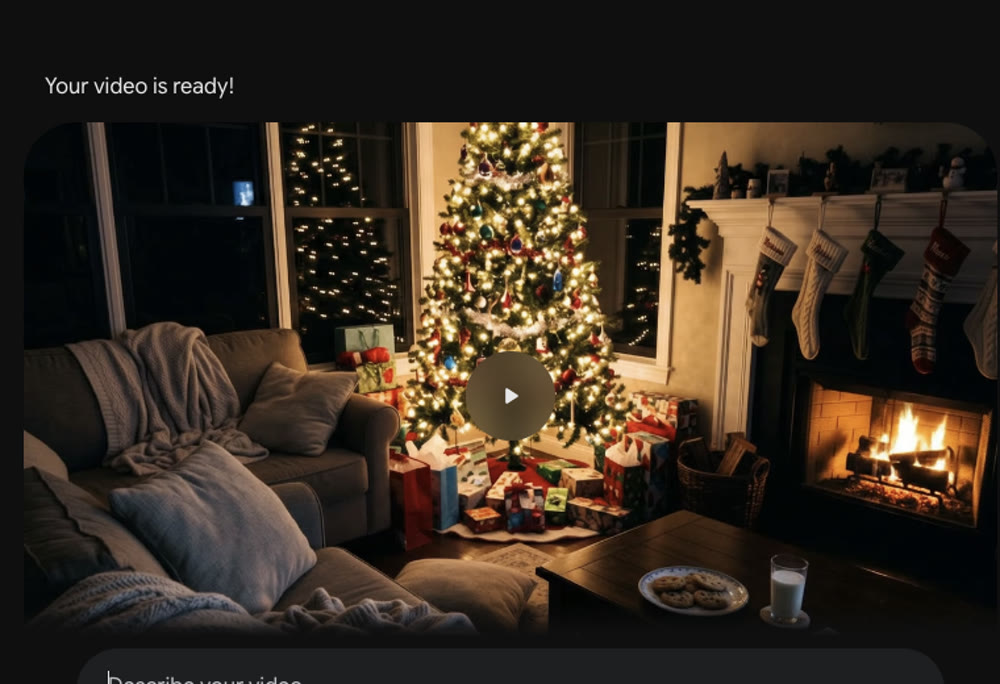
Step 3. Wait, then check it. The picture came back in about three minutes, on the first attempt, with no watermark. It kept the room well: the same windows and tree outside, the same stockings, the cookies and the glass of milk. Two things did not follow the prompt. The camera stayed at standing height instead of looking down from a corner, and Santa is turned away, so you cannot see his face.
Step 4. Switch the tool to video. Click the plus button again and choose Create video. Gemini calls this mode Omni. Attach the same room photo, then describe the shot and the line you want Santa to say, in quotes, exactly as you want to hear it.
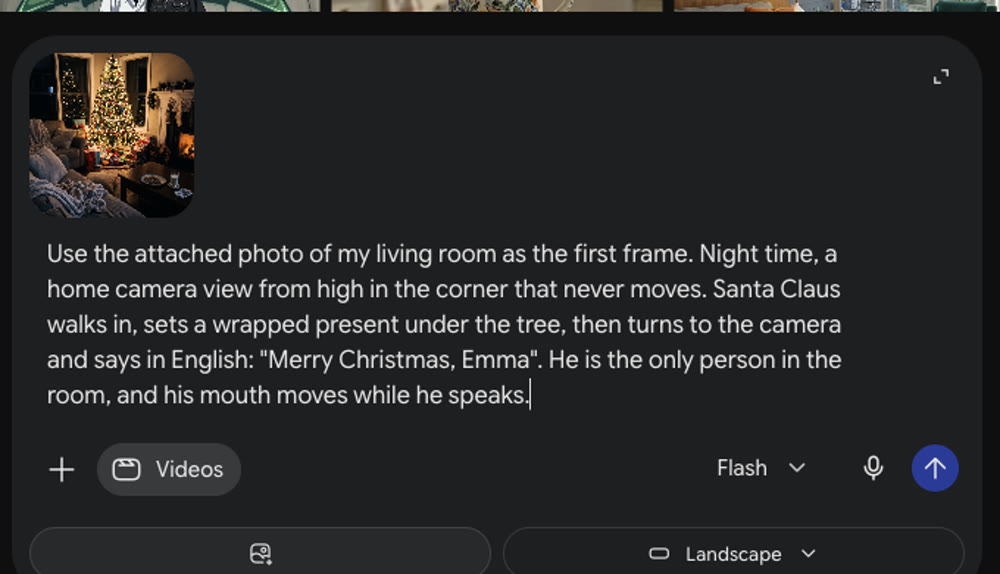
Step 5. Wait, then watch it with sound on. The clip took about six minutes and came back as ten seconds of 1280 by 720 video. Santa walks in, stops by the tree, turns to the camera and talks. The camera stayed in one place, the room stayed consistent, and there was no visible watermark. We asked for "Merry Christmas, Emma", and the caption Gemini generated from the audio reads exactly that: two seconds of speech at the end, with his mouth moving as he faces the lens.
What this route cannot do. It cannot add a camera overlay or a timestamp, and it cannot check its own output for you, so you have to watch the clip and decide. Santa only says what you wrote in quotes: there is no name field, no list of good deeds and no free redo if the name lands wrong. The framing hint is only a hint, since our "camera high in the corner" came back as an ordinary eye level shot. Each clip is a fresh roll of the dice too, so a second attempt may cost another five or ten minutes.
None of that makes it a bad option. It is flexible, and fun if you enjoy the fiddling. It is a craft project rather than a product.
4. A video where Santa says your child's name
The route most parents end up wanting is a clip that is already built to look like security footage: a fixed camera, a REC light, a timestamp reading 11:58 PM on 24 December, and Santa speaking to your child by name.
That is what we make. Three steps:
- Take one photo of the room with the tree, from a corner, with the lights on and nobody in it.
- Type your child's first name, add how to say it if the spelling is unusual, and pick one good deed from this year.
- Watch the free preview, then pay only if you like it. The video is usually ready in a few minutes, and it is a one time purchase with no subscription.
Santa walks in, sets a present under your tree, spots the camera and says something like: "Ho ho ho! Merry Christmas, Emma! You helped your little brother all year. You're on my Nice List!" You can start here. If a name comes out wrong, there is one free redo from the video page.
Getting the photo right, whichever route you pick
- Shoot from a corner, holding the phone high. Every option here does better with a wide view showing the tree and some floor.
- Leave the tree lights on. The model needs to see where the light comes from, or Santa looks pasted on.
- Keep people out of the frame. It is more believable, and it keeps your family out of someone else's training data.
- Take two photos, one straight on and one from the corner.
Showing it on Christmas morning
Make the picture or the clip on Christmas Eve, after the children are asleep. In the morning, before the presents, say you heard something in the night and want to check. Play it on the TV. If your child is old enough to answer a phone, the Santa is calling version rings like a video call instead.
For the longer version of this plan, and how to keep the story straight, read how to catch Santa on camera on Christmas Eve.
The short answer
An app store sticker gets you a laugh for a minute. A free AI photo of your own room costs nothing and looks far better. Gemini is the most flexible route if your plan includes video and you are happy to wait and check. A short video where Santa says your child's name is the version children remember.
Questions
What app can I use to make it look like Santa is in my house?
The quickest route is a browser, not an app. You can put Santa into a photo of your own living room with an AI image tool, or ask an AI assistant such as Gemini to make a picture and then a short video from that photo. No download is needed for any of it.
Are the Santa sticker apps good enough?
They are fast and free, and the top listings for this search average around two stars for a reason. A pasted Santa has the wrong lighting, the same pose every year and nothing moves, and children spot that quickly.
Is an AI picture of Santa in my house believable?
A still can be, if the room is really yours and the light matches. A short video is more convincing, because Santa walks in, moves and speaks. Either way, go through the picture once with your own eyes before you show it.
Do I need to pay to try it?
No. Our free preview costs nothing, and an AI assistant may be free or need a paid plan depending on your account. Paying is for a finished video where Santa knows your child by name, says one good deed and calls them out on the Nice List.